How to Get a Transcript from Any YouTube Video
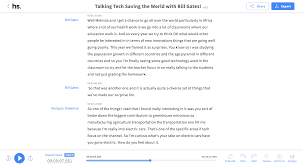
So, you want to create timestamped chapters for your video to boost your SEO, but you hit a wall: you don't actually have a transcript file saved on your computer. Maybe you filmed without a script, or you lost the original document.
Don't worry. You can still generate a transcript for almost any YouTube video—including your own—using a few simple methods. Here is how to get the text you need.
Why Do You Need a Transcript?
Before we dive into the "how," lets quickly revisit the "why." Transcripts are the fastest way to generate accurate timestamps. Instead of watching your video back and pausing every time you change topics, you can scan a text document. This saves hours of editing time and ensures your YouTube chapters are precise.
Method 1: Use YouTube's Built-in Transcript Feature (The Easiest)
If you are trying to get a transcript for a video that isn't yours (or even your own if you didn't save the script), YouTube often has one ready to go thanks to automatic captions.
Open the YouTube video you want the transcript for.
Click the three dots (More options) located below the video, next to the "Save" and "Share" buttons.
Click "Show Transcript."
A sidebar will appear on the right side of the screen showing the full transcript with timestamps.
To copy it, simply click the three dots in that transcript sidebar and select "Toggle Timestamps" to remove the time codes (if you want clean text), then highlight and copy the text.
Note: This works best for videos in popular languages where YouTube's auto-captioning is accurate.
Method 2: Third-Party Transcript Websites
If you need to download the transcript as a proper file (like .TXT or .SRT), or if YouTube's sidebar isn't showing up, third-party tools are your best friend.
There are many free websites (like DownSub, SaveSubs, or Happy Scribe) where you simply paste the video URL, and the site pulls the captions or transcript for you.
How to use them:
Copy the URL of the YouTube video.
Go to a site like DownSub or SaveSubs.
Paste the URL.
Download the file as a .TXT file.
This gives you a clean text file you can save to your computer and upload to other tools.
Method 3: Transcription Software (For Your Own Raw Footage)
If you have the raw video file on your computer but haven't uploaded it yet, you can use software like Descript, Otter.ai, or even Microsoft Word's Dictate feature. These tools listen to the audio and type out the text for you in real-time. This is perfect for creators who want to repurpose their content for blog posts or social media later.
Method 4: The Old-Fashioned Way (Manual)
If the audio quality is poor or the video is in a niche language, you might have to do it manually. Play the video, keep a Notepad document open, and type as you watch. While time-consuming, this guarantees 100% accuracy.
Now That You Have Your Transcript...
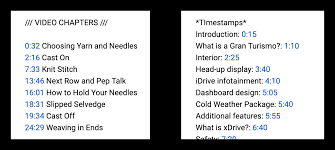
Once you have your transcript as a text file, the hard part is over. The next step is turning that wall of text into a neat, SEO-friendly list of timestamps for your YouTube description.
Instead of manually reading through the transcript to find every topic break, use a dedicated tool. Upload your fresh transcript to [Your Tool Name] , and let the generator create perfect, clickable chapters that will boost your watch time and rankings.